Questions this answers
- Can I use multiple models simultaneously in the same Cursor session?
- What happens if a model provider goes down?
- How do I monitor my token usage and spending?
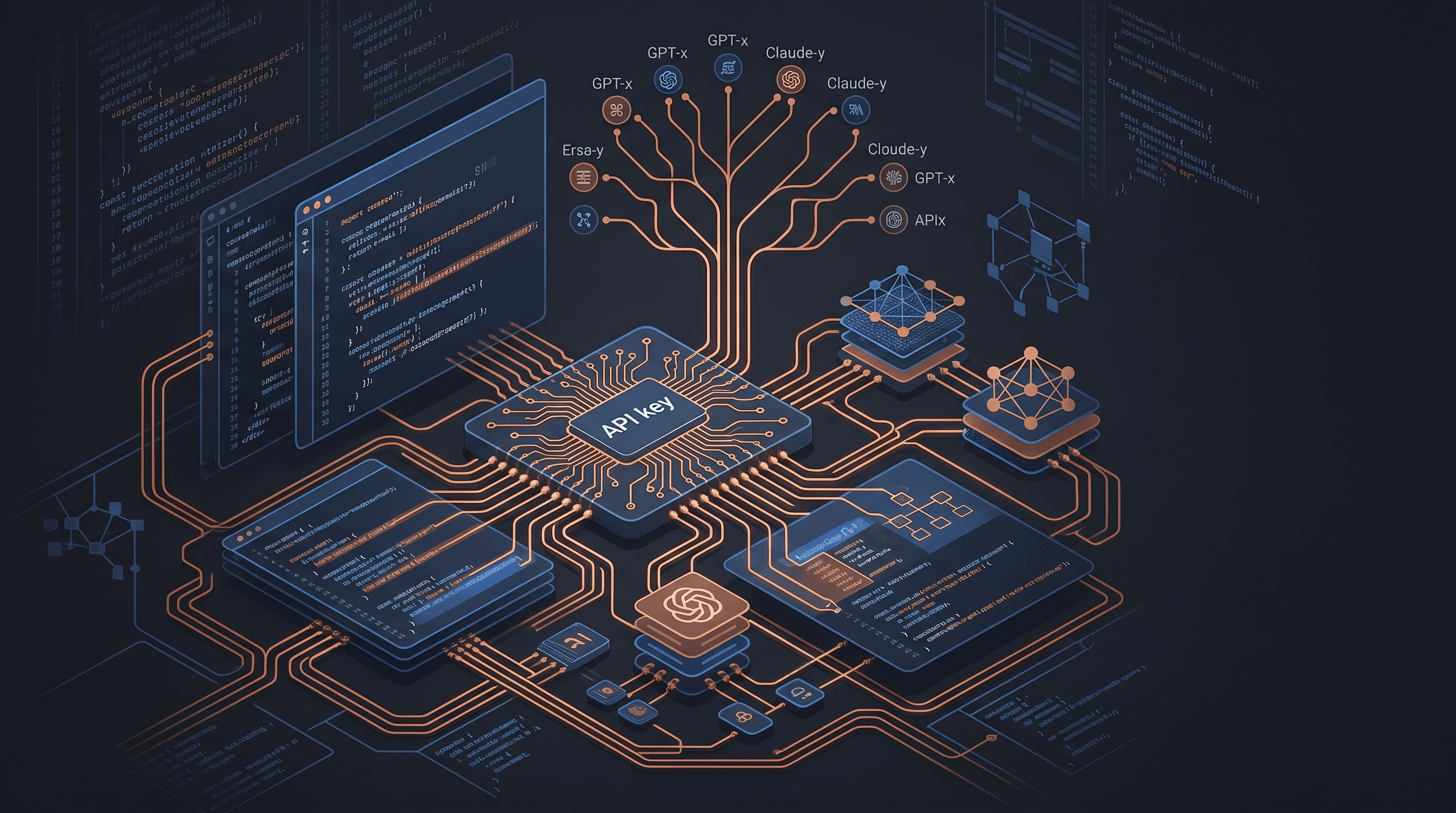
Configuring a custom OpenAI-compatible endpoint in Cursor allows you to route all AI coding requests through a single unified API key. By integrating TokenLab, you can access multiple LLMs from different providers inside Cursor without managing separate API keys or subscriptions. This guide walks you through the complete Cursor API key setup process to streamline your development environment.
Key Takeaways
- Unified Access: Use one TokenLab API key to query models from OpenAI, Anthropic, Google, and open-weight providers.
- Cost Efficiency: Avoid multiple monthly subscriptions by paying only for the exact tokens you consume.
- Model Flexibility: Switch instantly between frontier reasoning models and fast, low-cost coding assistants.
- Simple Integration: Configure the setup in less than five minutes using Cursor's native OpenAI-compatible override settings.
Why Use TokenLab with Cursor?
Cursor is a powerful fork of VS Code designed for AI-assisted programming. By default, it uses its own backend subscriptions or requires you to input individual API keys for every provider you want to use. Managing separate accounts, billing cycles, and API keys for OpenAI, Anthropic, and Google is tedious and expensive.
TokenLab solves this problem by acting as a single gateway. With a single TokenLab API key, you gain access to a diverse catalog of models. You can review the full selection on the TokenLab model directory.
Instead of paying flat monthly fees for multiple services, you only pay for the tokens you actually use. This setup is ideal for developers who want to compare model performance on the fly or route different tasks to the most cost-effective model. For a detailed breakdown of how different providers structure their rates, check out our pricing comparison.
Step-by-Step Cursor API Key Setup
To route your Cursor queries through TokenLab, you will configure Cursor to treat TokenLab as a custom OpenAI-compatible provider. This process redirects Cursor's API requests to TokenLab's endpoint while passing your TokenLab credentials.
Step 1: Generate Your TokenLab API Key
- Log in to your TokenLab dashboard.
- Navigate to the API Keys section.
- Click Create New Key, give it a descriptive name (such as "Cursor Development"), and copy the generated key. Store this key securely.
Step 2: Configure Cursor Settings
- Open Cursor on your machine.
- Open the settings panel by clicking the gear icon in the top-right corner, or use the keyboard shortcut
Ctrl + ,(Windows/Linux) orCmd + ,(macOS). - In the settings sidebar, navigate to Models.
- Locate the OpenAI section. You will override this section to point to TokenLab.
Step 3: Enter the Endpoint and Key
- Toggle the OpenAI section to On.
- Click on Override OpenAI Base URL and enter the TokenLab base endpoint:
https://api.tokenlab.sh/v1
- In the API Key field, paste the TokenLab API key you generated in Step 1.
- Click Save or press enter to apply the changes.
Step 4: Add Your Target Models
Cursor needs to know which models to request from TokenLab. Under the model list in your Cursor settings, add the specific model identifiers you wish to use.
For example, you can add the following model identifiers to your list:
claude-sonnet-5(for advanced coding and system design)deepseek-v4-pro(for deep reasoning and complex debugging)gemini-3.5-flash(for fast, low-cost code edits)
You can verify the exact model strings to enter by visiting the TokenLab model directory.
Selecting the Right Models for Coding Tasks
Different coding tasks require different capabilities. Using a single flagship model for every single autocomplete or simple explanation is not cost-effective. By using TokenLab, you can match the model to the complexity of the task.
Frontier Coding and System Architecture
For complex refactoring, writing comprehensive test suites, or designing system architecture, you need the strongest reasoning models available. Claude Sonnet 5 and DeepSeek V4 Pro are excellent choices for these demanding tasks. They understand complex codebases, maintain deep context, and generate highly accurate code blocks. To explore how these models compare to other options, read our guide on the best AI models for coding in 2026.
Fast, Low-Cost Code Generation
For simple tasks like writing boilerplate code, generating documentation, or explaining a specific function, you do not need to spend extra on flagship models. Instead, route these requests to faster, cheaper models such as Gemini 3.5 Flash or DeepSeek V4 Flash. These models return responses almost instantly and cost a fraction of the price of frontier models.
Open-Weight Alternatives
If you prefer to work with open-weight models, TokenLab supports options like GLM-5.2, Qwen3.7 Plus, and Kimi K2.7 Code. This allows you to test how open-weight models handle your specific codebase compared to proprietary options. You can find more details on how these models stack up against proprietary giants in our OpenRouter comparison.
Configuration Checklist and Model Mapping
Use this quick reference table to ensure your Cursor setup is optimized for your daily development workflow:
| Task Complexity | Recommended Models | Key Benefit | Cost Profile |
|---|---|---|---|
| High (Refactoring, Architecture) | Claude Sonnet 5, DeepSeek V4 Pro | Deep reasoning, high accuracy | Premium |
| Medium (Standard features, Tests) | Kimi K2.7 Code, GLM-5.2 | Balanced speed and accuracy | Moderate |
| Low (Boilerplate, Explanations) | Gemini 3.5 Flash, DeepSeek V4 Flash | Ultra-fast responses, low latency | Very Low |
Frequently Asked Questions
Can I use image generation models inside Cursor with this setup?
Cursor is primarily designed for text and code generation. While TokenLab supports advanced image models like Nano Banana 2 (Gemini 3.1 Flash Image) and GPT Image 2, Cursor's chat interface does not natively support rendering or generating images through its standard code completion window. For tasks requiring image generation, you can explore our guide on the best AI image models API in 2026.
How do I monitor my token usage and spending?
You can monitor your real-time token consumption, active sessions, and spending directly from your TokenLab dashboard. Because you are using a single API key, all queries from Cursor are consolidated into a single billing interface, making it easy to track your development expenses.
What should I do if Cursor returns a connection error?
If you encounter a connection error, double-check that the base URL is set exactly to https://api.tokenlab.sh/v1 and that there are no trailing spaces in your API key. Also, ensure that the model identifier you are trying to use in Cursor matches the exact string listed in the TokenLab directory.
Get Started with TokenLab
Ready to streamline your development environment and cut down on redundant AI subscriptions? Set up your unified API key today.
Visit our TokenLab Code Models Category to explore the full list of supported programming models, and sign up on the TokenLab platform to generate your API key and upgrade your Cursor workflow.
Sources
Price observed 2026-07-07
- TokenLab API docsObserved 2026-07-07
- TokenLab model directoryObserved 2026-07-07